SVCMON Point Templates
Each SVCMON-specific system UDC (standard, calculated, or timer) has an associated point template. For the most part, the properties of these templates are generic defaults; for example, no alarm setpoints are defined and the history retention period is 30 days. The Facility of a point template is ~TEMPLATE and the UDC is the SVCMON UDC.
Point templates provide a method for you to define properties that can be applied to SVCMON points, whether the point represents an info item, a calculated point, or a timer. A template can be applied when a point is created or at any time thereafter, even if the point was not initially based on the template.
The Status property in a point template’s point configuration is set to Inactive. As such, a point template is listed only in the Point Service (PNT). You should leave this property as is, as there is no need to show the templates in SVCMON.
To Modify a Point Template
SVCMON point templates can be modified using a number of methods.
Using the CygNet ServiceMon Administration utility:
- On the Explore view, double-click or right-click on the point template and select Edit Point Configuration or Edit Template.
- On the Info Items view, select the UDC from the UDC column and click Edit Template.
- Modify as necessary.
Using CygNet Explorer:
- Click on the PNT in the service hierarchy. In the service pane double-click or right-click on the point and select Properties.
- Modify as necessary.
To Apply a Point Template when Creating Points or a Timer
- When clicking to create the points or timer, click to check the Use Templates option.
To Apply a Modified Point Template to Existing Points
A template can be applied to any point for which the UDC property is the same as the template’s. Multiple templates can be applied at the same time. If you have multiple tags selected that are based on different UDCs the template of the appropriate UDC will be applied.
Using the CygNet ServiceMon Administration utility:
- On the Explore view, select the point(s) to which you want to apply the modified template. Press Ctrl+Click to select multiple items. You can sort or reverse sort items based on a column by clicking the column heading.
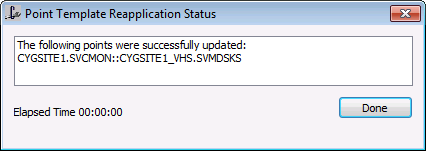
- Click Reapply Template or right-click and select Reapply Template for this Point.
- Click Done.
|
Point Template Reapplication Status |